Those days, images were usually the go-to option for sellers to showcase their products on Amazon, but now, more and more Amazon vendors use a video to show the product on the listing.
Adding product videos to the Amazon product listing is a better way to showcase your products. It helps you grab higher engagement and higher sales, increases time on site, and helps win customers' trust in your product.
In this article, we'll share an easy way to make Amazon product video for your listing or YouTube promotion.
Quick Navigation:



You May Also Like: How to Edit a Zoom Recording for Free (Online, Mac, Windows) >
Part 1 How to Make an Amazon Product Video
You can use different online video makers to make a product video for your Amazon listing or promotion. Here we'll introduce the most effective one, FlexClip, to help you create an Amazon product video in different ways.
With FlexClip, you can make a product video for your Amazon listing just with images or combine your images and video clips together. Powerful AI tools, like product link to video converter and AI Recreate, are also available for your to quickly make a product video with AI. Amazing features and effects are waiting for you to explore!
Method 1 AI Recreate any Product Video Template for Amazon
Get your materials ready and follow the simple steps below to make an Amazon product video from a pre-made templates in seconds using FlexClip's AI Recreate feature.

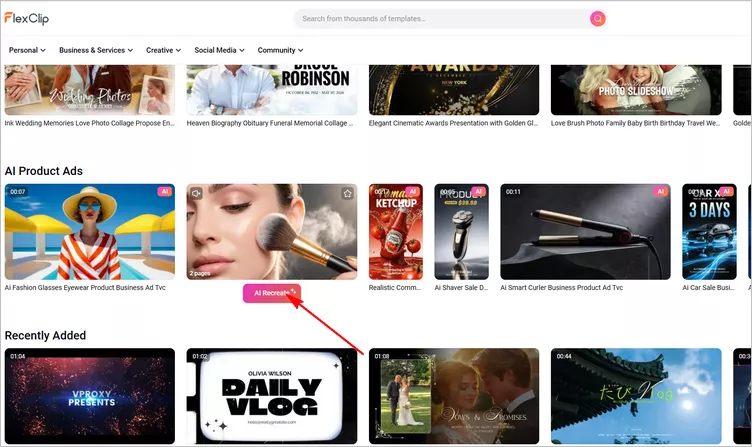
Recreate Any Pre-made Template for a Product Video - Select Template
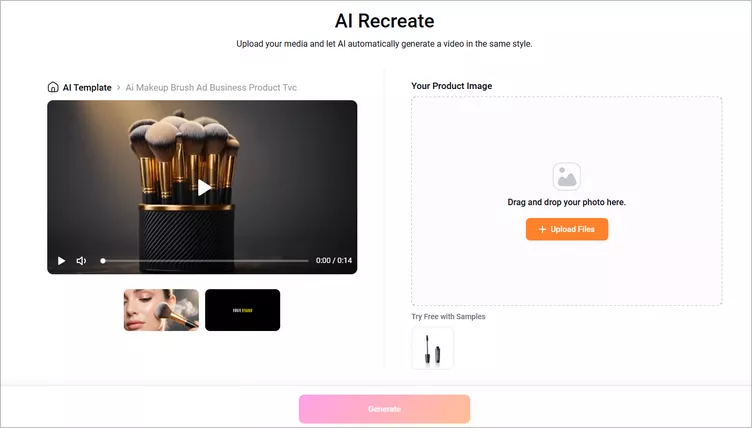
Recreate Any Pre-made Template for a Product Video - Upload & Setting
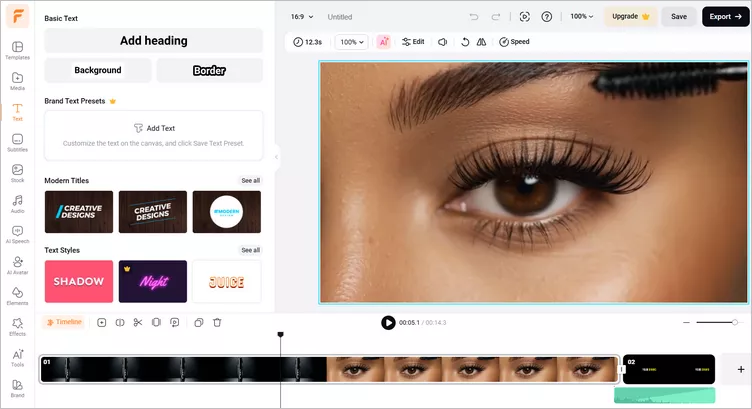
Recreate Any Pre-made Template for a Product Video - Edit
Method 2 Transform Your Product Link into a Video with AI
For those who want to turn their Amazon link into a product video, FlexClip offers a powerful product link to video converter to quickly transform a Amazon link into a product video. Let's check the steps together.
Step 1 Start with Any Amazon Product Link
Simply copy and paste your Amazon product link into FlexClip's Product URL to Video Generator. Its AI will automatically analyze the product page and extract key text and images, saving you the hassle of gathering product information manually.

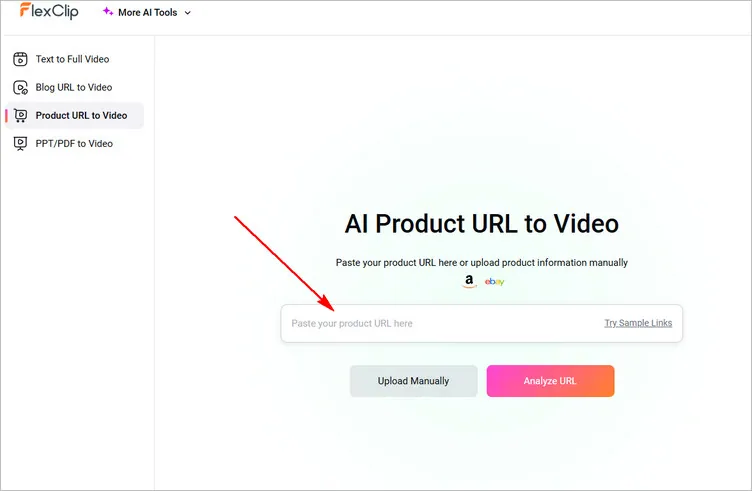
Start with Any Amazon Product Link
Step 2 Set Up Your Video Preferences
After your product information and images are loaded, you can customize the product description, replace images, and adjust the content as needed. Then, click Next to configure your video preferences.
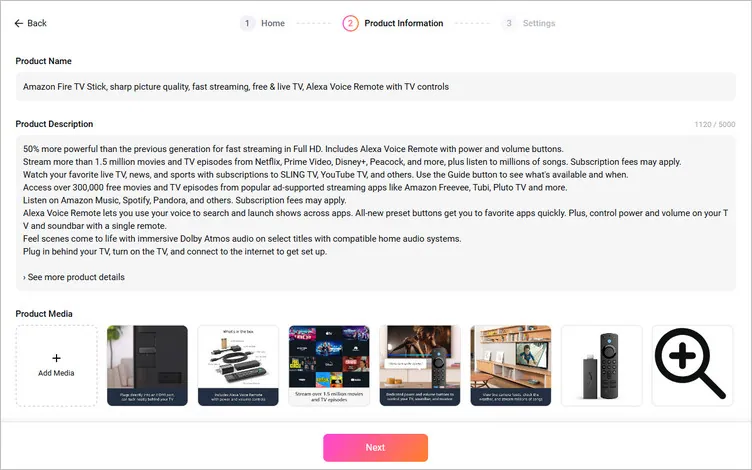
Set Up Your Product Video Preferences - Information & Footage
Choose an aspect ratio that fits your target platform. For example, use a square format for Instagram, a vertical format for TikTok, or a landscape format for YouTube and Amazon. You can also select a voice for your product narration. Choose from male, female, or kids' voices.
To make your video easier to follow, select from a range of professionally designed subtitle styles. You can customize the font, color, size, position, and animation to match your brand and video style.
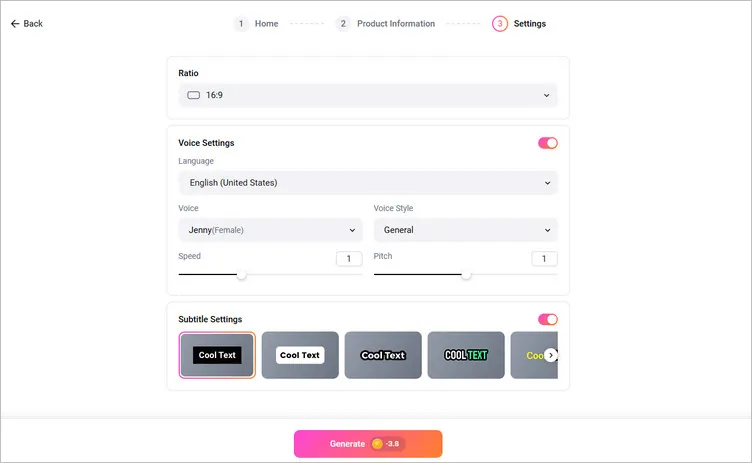
Set Up Your Product Video Preferences - More Settings
Once everything looks good, click Generate and let the AI create a product video tailored to your content.
Step 3 Edit and Download the AI-Generated Product Video
Your video is now ready, complete with slides, narration, background music, and visuals that are automatically synchronized and fully editable.
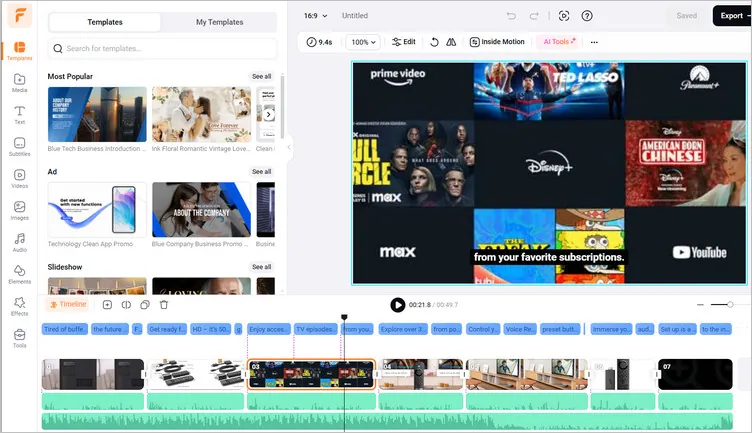
AI-Generated Product Video from Amazon URL
You know what works best for your brand, so simply add the necessary touches to your marketing video before rendering it: change the images, add transition and more effects, edit subtitles, add catchy title card and captions, or include your brand's avatar, etc.
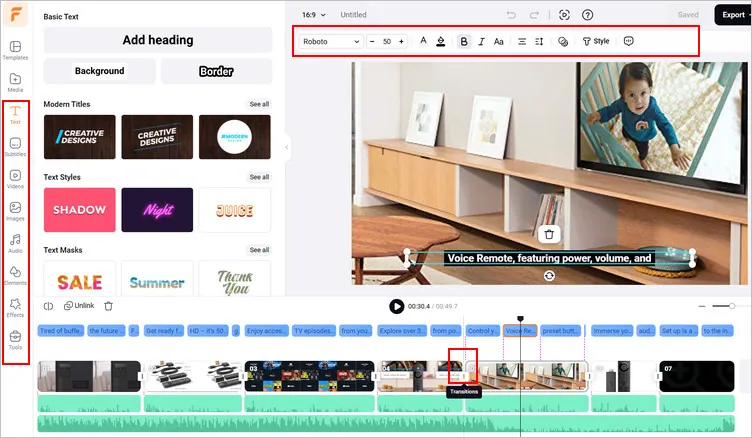
AI-Generated Product Video from Amazon URL - More Edits
When you're happy with the final result, click Download to save and share your video. You can export it to your local device, save it to a cloud service, generate a shareable short link, or publish it directly to social platforms such as YouTube and TikTok.
Method 3 Edit Your Footage into a Product Video for Amazon
Want more flexibility or flair? FlexClip also offers a full customization solution for you, allowing you to control timing, effects, text layers, and quality and making your product video look far more professional and engaging. check the steps below to learn how to edit an Amazon product video all by yourself from scratch.
Step 1 Upload Your Product Photos and Clips to FlexClip
Access the FlexClip editor, and upload your product video footage to the Media section. Here you can upload them from your computer, mobile device, or even some third-party platforms, like Google Drive, One Drive, Dropbox, etc.
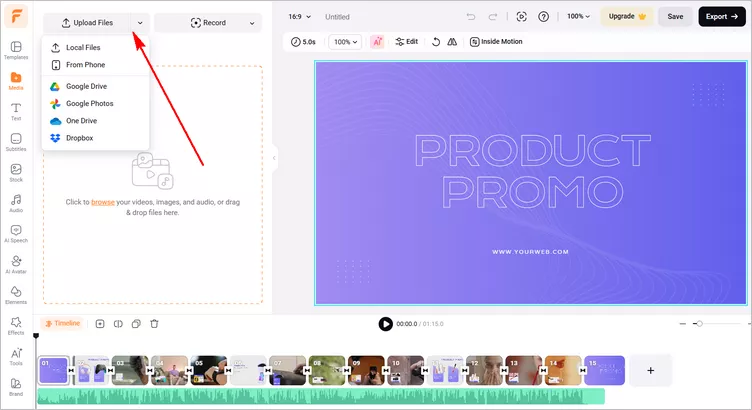
How to Make an Amazon Product Video - Upload
Step 2 Edit and Adjust Your Footage
Once uploaded, apply your footage to the timeline, then you can use FlexClip's editing tools to edit your product photos and clips.
You can rotate, flip and trim the footage, use the background remover to remove the background, add animation or motion to the product, and do more to adjust your footage.
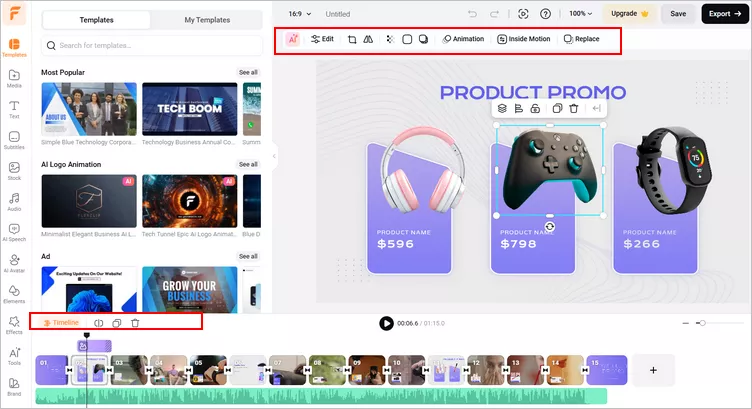
How to Make an Amazon Product Video - Adjust
Step 3 Add Text to the Product Video
A video with subtitles and captions is even more likely to attract more attention. FlexClip has an easy text tool for you to add text to a video quickly.
Simply go to the Text tab on the sidebar, browse to find your desired text effect, enter your message, and customize it on the font, color, size, location, and more.
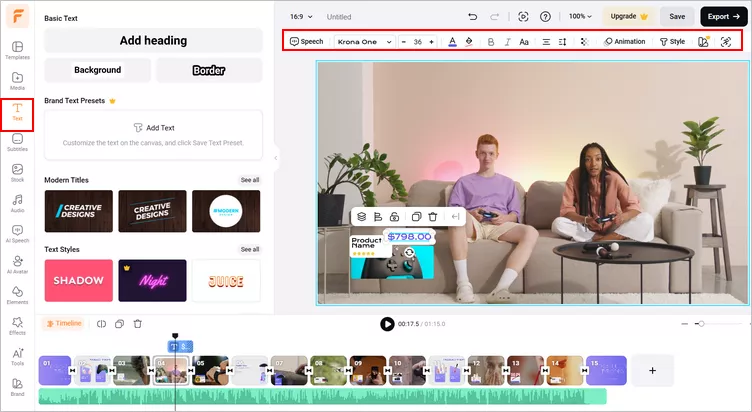
How to Make an Amazon Product Video - Text
Step 4 Add Audio to the Product Video
Now you can go to the Audio tab to add background music or some sound effects to your Amazon product video. Want to use your own audio track? You can simply upload it directly, then make simple edits on the audio track, trim, fade in/out, and adjust the volume of the audio freely. You can also try the voiceover to highlight your content.
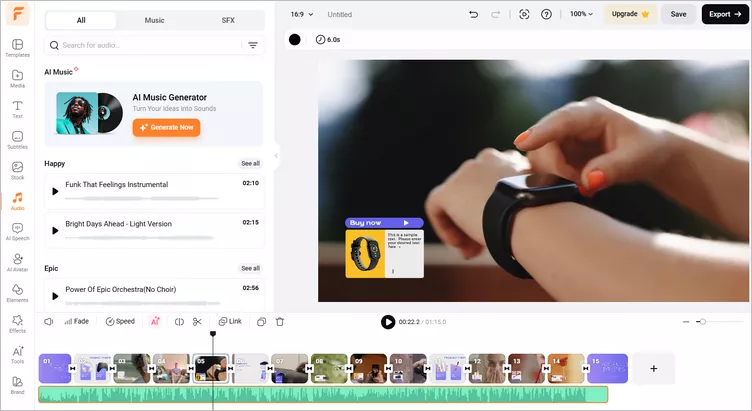
How to Make an Amazon Product Video - Audio
FlexClip offers more effects and features for you to edit a video, just feel free to try them out and make your product video far more appealing.
Once done, you can preview the video to check the final result, then save it on your computer. You can also share your Amazon product on social media directly, like YouTube and TikTok, to win more viewers and potential customers.
Part 2 How to Add the Video to Amazon Listing
Now that you've made your product video, it is time to upload it to your Amazon listing. Follow the simple guide below to learn how to add the video to the Amazon listing.
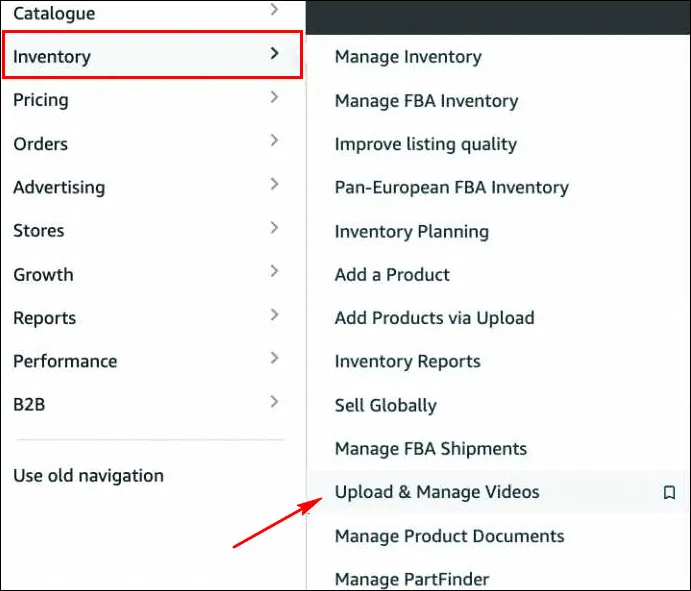
How to Add the Video to Amazon Listing - Step 1

How to Add the Video to Amazon Listing - Step 2
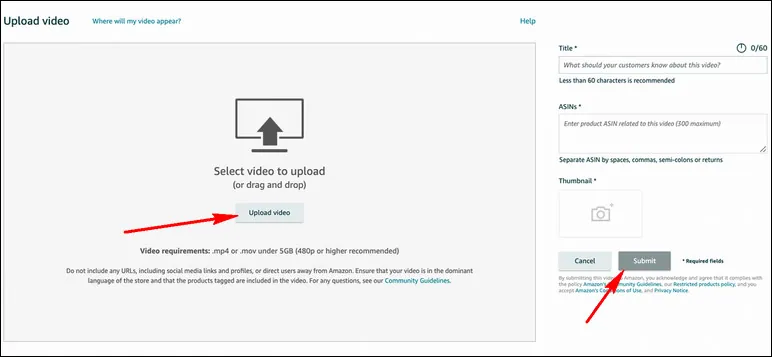
How to Add the Video to Amazon Listing - Step 3
Now, your video should be sent to Amazon for review. Once it has been approved, it will appear on your listing.
Final Words
Nowadays, videos are an important part of your customer's shopping journey, especially on Amazon. A good product video can help you connect with more customers, drive brand awareness, tell your brand's story, and increase sales on your listings. Just turn to FlexClip and make an Amazon product video for your listing right now!




FlexClip AI Video Maker
Reach professional-quality videos faster with easy editing tools, templates, and smart AI.
Start Now for Free
Hot & Trending
-

Best Ways to Find Music in YouTube Videos
-
Instagram Story Video Quality Bad After Upload? Fix It!
-
How to Repost Video on TikTok & How to Remove TikTok Repost
-

Improve Video Quality Online: 3 AI Video Quality Enhancers You Can't Miss
-

4K Convert to HD 1080p without Watermark: Best 4k Video Converters
-

Best 8 Free Video Editors - No Download Required
-
Top 13 Birthday Video Makers with Music and Effects Free
-
How to Search Filters on TikTok & Use a Filter You See - TikTok Filter Guide